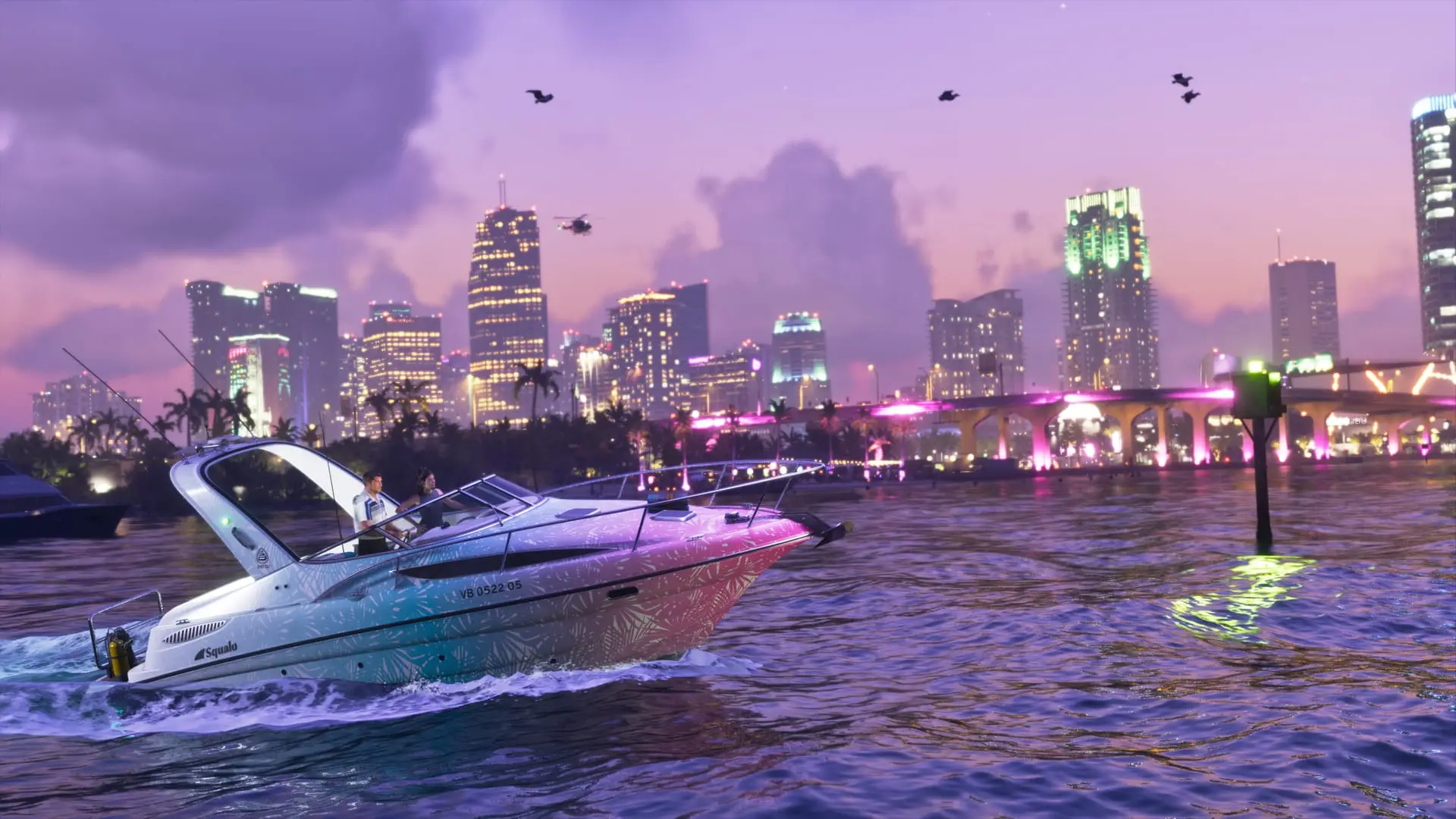
How to turn on headlights and high beams in GTA 6
The quick button and the vehicle menu for GTA 6 headlights on PS5 and Xbox, plus the Auto, Low Beam, High Beam and Off settings, hazards and turn signals.
Reported. Established outlets report this. Rockstar hasn't said so.
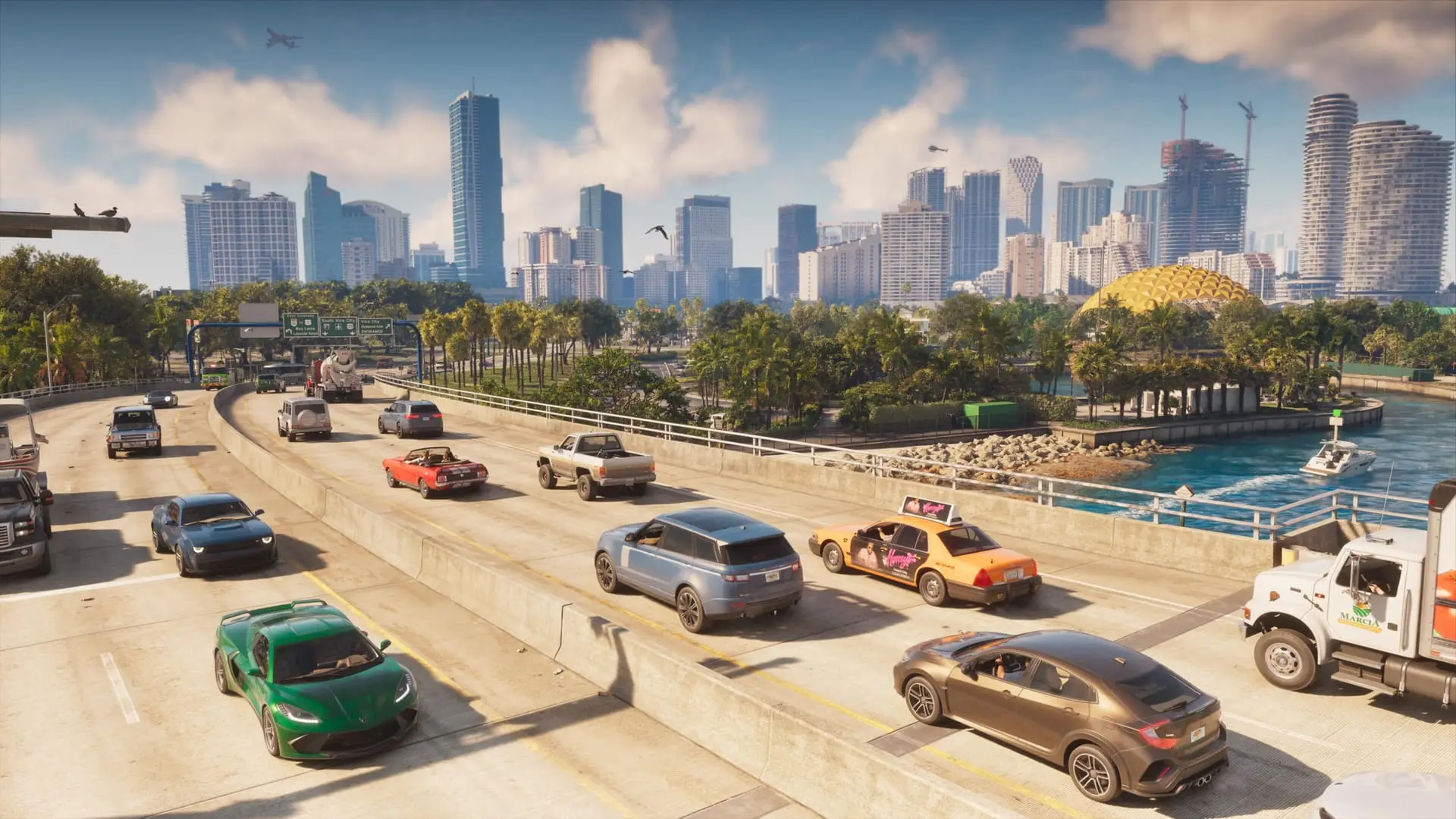
To switch your headlights in GTA 6, press Circle on PS5 or B on Xbox Series X|S while you're in a vehicle. To pick a specific setting such as high beams, hold Left on the D-pad, push the right stick up to reach the Vehicle menu, then move to Headlights with L1/R1 (PlayStation) or LB/RB (Xbox).
You don't need to unlock anything first. Any vehicle you're sitting in works.
The quick headlight button
| Action | PlayStation | Xbox |
|---|---|---|
| Headlights | Press Circle | Press B |
| Turn signal left | Tap Left (D-pad) | Tap Left (D-pad) |
| Turn signal right | Tap Right (D-pad) | Tap Right (D-pad) |
| Hazard lights | Vehicle menu only | Vehicle menu only |
The button is the fastest way to turn the lights on or off while driving. Nobody has yet spelled out exactly how a single press cycles through the settings, so if you want a particular mode, use the menu below.
Choosing a headlight setting in the Vehicle menu
- Get into a vehicle.
- Hold Left on the D-pad. The Radio menu opens first.
- Push the right stick (R3) upwards to switch to the Vehicle menu.
- Press L1 or R1 on PlayStation, or LB or RB on Xbox, until you reach Headlights.
- Pick the setting you want. Options in this menu are switched on with Cross on PlayStation or A on Xbox.
The same menu also holds Hazards, Engine, Tailgate and Windows, so you'll scroll past those on the way.
Headlight settings explained
| Setting | What it does |
|---|---|
| Auto (default) | The lights switch on and adjust by themselves when needed |
| Low Beam | Lights stay on low beam, fine for everyday night driving |
| High Beam | Full brightness, useful in fog or storms, or on a long, empty highway at night |
| Off | Lights stay off completely |
Auto is the default, so a car that hasn't been changed will handle its own lights.
Why high beams matter at night
Leonida has a full day-night cycle, and its nights are much darker than in most open-world games. Away from streetlights, on rural roads, in forests and in other poorly lit areas outside Vice City, you can struggle to see the road right in front of you without headlights. High beams give you the most visibility on those stretches. Our map guide covers which regions are which.
Turn signals and hazard lights
GTA 6 is the first game in the series that lets you use indicators yourself. Tap Left on the D-pad to signal left and tap Right to signal right, on both consoles. The signals can switch off on their own after you finish the turn.
Hazard lights only live in the Vehicle menu:
- Get into a vehicle.
- Hold Left on the D-pad to open the menu (it starts on Radio).
- Push the right stick upwards to switch to the vehicle controls.
- Use R1 or L1 on PlayStation, or RB or LB on Xbox, to reach Hazards.
- Press Cross on PlayStation or A on Xbox to turn them on.
Both indicators then flash at once. Repeat the same steps and select Hazards again to switch them off.
Common mix-ups
- Holding Left instead of tapping it. A tap signals a left turn. Holding opens the vehicle menu.
- Landing on the Radio menu. The menu always opens on Radio first. Push the right stick up to get to the vehicle options.
- Hazards icon not changing. The icon in the menu may not update straight away even when the hazards are on. Close the menu and look at the car to check both sides are flashing.
Looking for something to drive at night? Our GTA 6 cars and vehicles list covers every confirmed one.
Written by AI from the sources listed here, then checked automatically for copied wording and for claims stronger than the sources. How we work